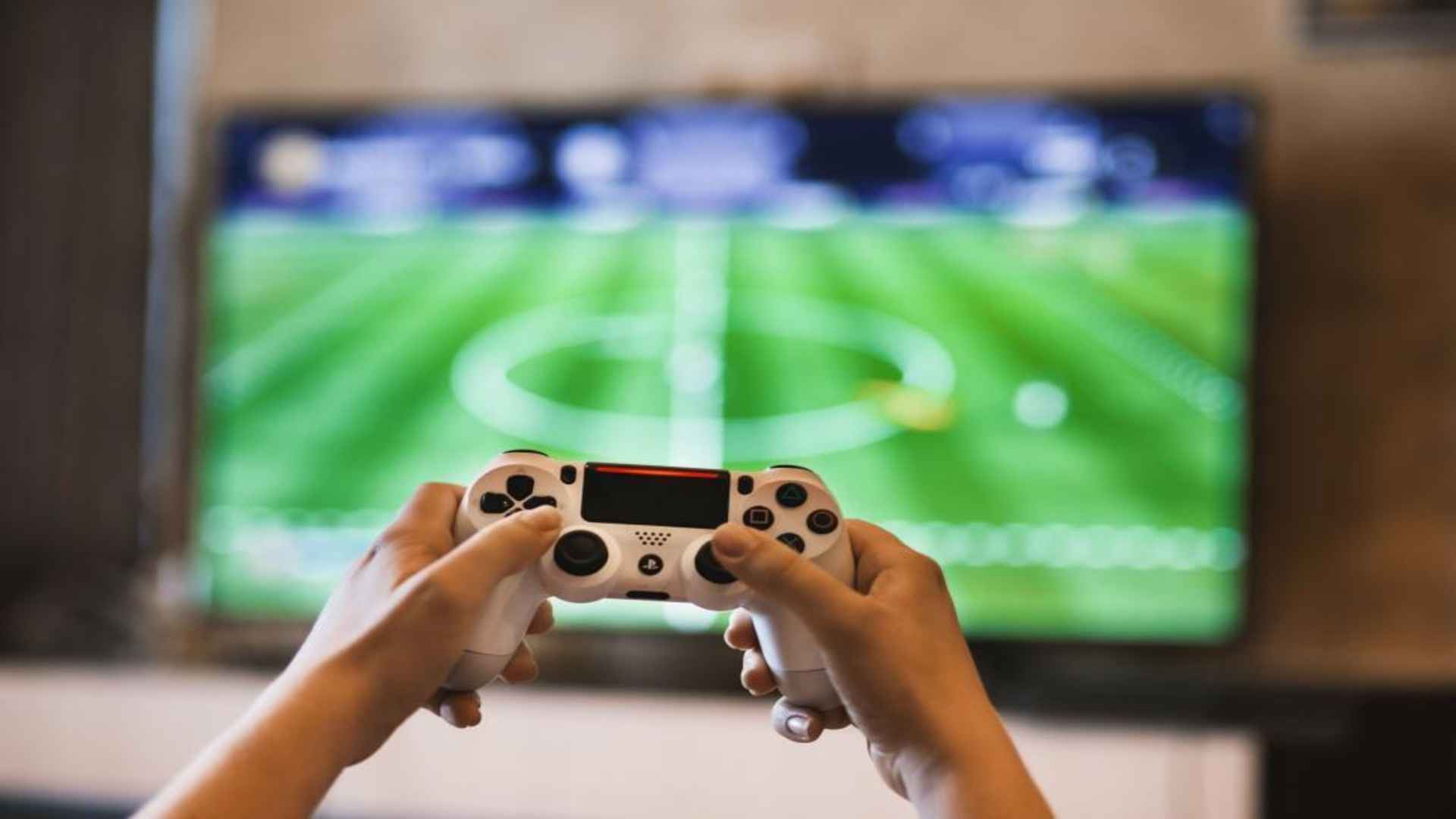
Connecting a gamepad to a computer should normally be a seamless plug-and-play process, yet many gamers encounter frustrating connectivity issues. Whether using Bluetooth wireless or a direct USB cable, several hardware and software conflicts can prevent your system from recognizing the device. Identifying the underlying cause helps you restore your gaming setup quickly without unnecessary hassle.
Common Hardware and Cable Issues
Physical connections are often the first point of failure when a gamepad refuses to pair or power on. Faulty USB cables, damaged ports, or low battery power can immediately disrupt signal transmission between hardware components. Testing different USB ports or swapping out charge cables usually isolates simple physical failures quickly.
Wireless setups depend heavily on strong Bluetooth signals and sufficient internal power to maintain connection stability. Weak batteries often cause intermittent disconnections or complete pairing failures on desktop systems. Replacing the batteries or charging the internal pack fully ensures continuous communication during long gaming sessions.
Outdated Drivers and Operating System Conflicts
Windows relies on specific device drivers to communicate effectively with various modern gaming controllers. When these driver files become corrupted or outdated, the system fails to map inputs properly. Updating your generic peripheral drivers through Device Manager frequently resolves persistent connectivity glitches.
Operating system updates occasionally introduce background conflicts that temporarily disrupt peripheral controller management. Checking for optional system updates helps ensure that proper driver protocols remain fully active. Reinstalling the official controller configuration software can also reset corrupted registry settings effectively.
Interference from Steam and Background Software
Background applications like Steam, Discord, or third-party mapping tools frequently interfere with native controller detection. Overlapping input configurations can cause the operating system to ignore physical controller inputs entirely. Disabling extra overlay programs eliminates software conflicts that prevent direct peripheral communication.
Steam features its own input configuration layer that sometimes overrides default Windows device settings. Adjusting controller settings within the platform allows you to enable or disable target support toggles. Managing these software layers carefully guarantees smooth gameplay performance without unexpected input drops.
Bluetooth Pairing and Wireless Adapter Solutions
Bluetooth connections often drop due to signal interference from nearby electronic devices or physical obstacles. Removing stored Bluetooth pairings and forcing the computer to discover the controller again frequently fixes pairing loops. Ensure your PC's Bluetooth adapter remains updated with the latest manufacturer firmware.
Dedicated USB wireless dongles provide a significantly more stable connection than standard onboard Bluetooth chips. Plugging the receiver into a direct USB port rather than an unpowered hub prevents power throttling. These simple adjustments restore reliable wireless control so you can resume playing without delay.